PCB
Route a board with Resin AI
Ask Resin AI to place and route the board, approve its plan, and check the result.
A placed and routed board, checked with DRC.
Before you start
- A board with the schematic's parts on it (see Synchronize schematic and PCB)
- Design rules set (see Inspect board setup)
Applies to: Resin web app
Follow the steps
- 1
Get the board ready
Push the schematic's parts to the board and set your design rules: Resin AI routes within them. Lock any part that must stay where it is.
Where: PCB / Project / Board Setup
Expected resultThe board has its parts and your rules.
- 2
Ask for a layout
In the PCB tab press Layout (Shift+A), or ask in Chat. Add anything the layout should respect, such as where a connector goes, and send. Layout is in beta.
Where: PCB / Layout
Expected resultA PCB layout card appears in Chat.
- 3
Approve the plan
Resin AI shows you its plan before it moves anything. Choose Looks good, or say what to change.
Where: Chat / PCB layout card
Expected resultThe plan is approved.
- 4
Let it place and route
Resin AI places and routes the board while the card shows its progress. Pause or stop it at any time.
Where: Chat / PCB layout card
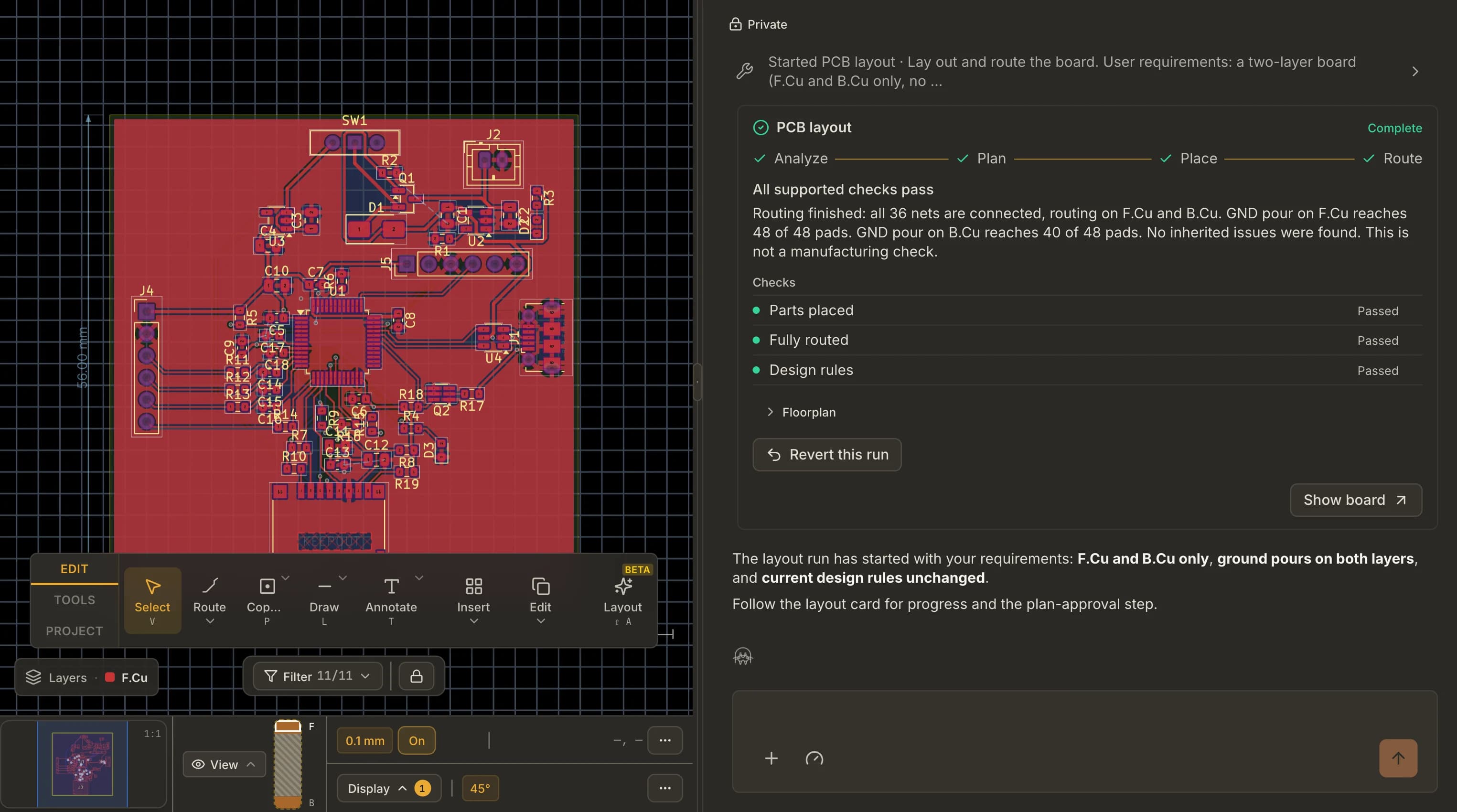 Expected result
The card shows Complete.
- 5
Check the result
Resin runs DRC when the run finishes. Review anything it flags; every part and track stays editable. Revert this run on the card takes the whole run back.
Where: PCB / DRC
Expected resultDRC shows no errors you cannot explain.
Check your result
- Parts and rules ready
- Plan approved
- Run complete
- DRC run
Troubleshooting
Find the symptom, apply the fix, and repeat the affected check.
Layout is greyed out
The board has no parts yet. Push the schematic to the PCB first.
The card is waiting for your answer
Answer its question on the card or in Chat.
Some connections are left unrouted
Give the crowded parts more room and ask for another layout, or route them by hand.
The run stopped early
Choose Continue on the card. If your workspace is out of AI credits, continue once credits are available again: they reset at the start of each month, and a workspace admin can add credits in Usage & billing where purchases are offered.